

This post is mainly my way of documenting my setup for that inevitable moment when I forget how I did it. But more importantly: in an era where computers are increasingly presented as black box appliances with no user serviceable parts, knowing how to tweak system internals is a small act of rebellion. You can remind the computer who is really in charge.
Have you ever sat twiddling your thumbs waiting for your computer to boot, and wondered if you could speed it up even just a little bit? This one weird trick could be just the thing.
These days (I’m writing in November 2025) a typical general purpose computer runs something called Universal Extensible Firmware Interface (UEFI) when it’s powered up or rebooted. UEFI is the descendant of the old Basic Input Output System (BIOS). It’s responsible for things like initialising hardware, managing Secure Boot keys, boot devices and boot order. Most interestingly, unlike old style BIOS ROMs, UEFI is extensible (that’s the “E”), which means that you can drop in EFI modules which change or extend its functionality.
One particularly intriguing module is called… The Linux Kernel. Yes, that’s right - the Linux kernel has something called an EFI Boot Stub, which tricks UEFI into booting straight into Linux instead of wasting time doing boring things like starting a conventional bootloader such as GRUB. Caveat: Some UEFI implementations don’t get on well with the EFI Boot Stub, so best to check before you get carried away. If your computer lets out the blue smoke, you ain’t seen me - right?
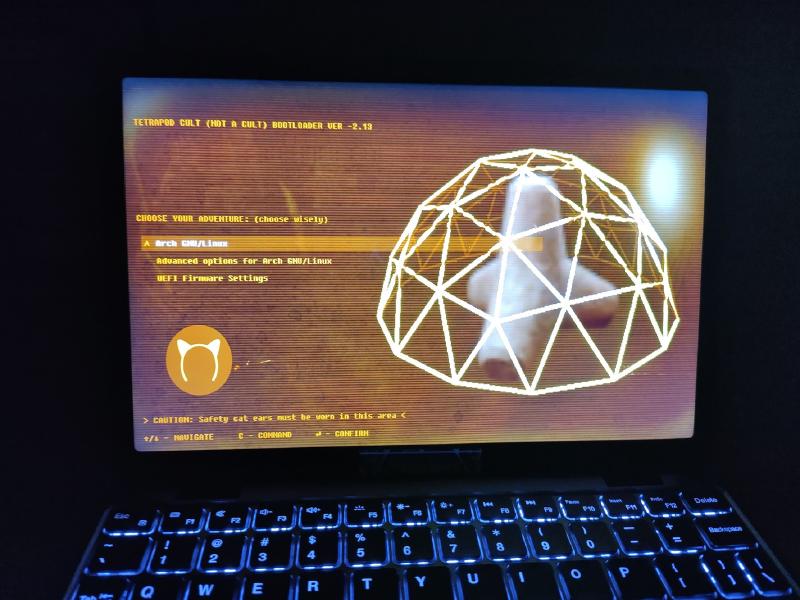
I’d been meaning to play with EFI Boot Stub for a while, but my plans got brought forward after a couple of near-misses when my “everyday carry” laptop got swept off a table onto the floor but emerged miraculously unscathed. One of them was on a speeding train, when my laptop was knocked off the table by a man with a gun. OK, so it turned out that he was on his way to a shooting contest, and the gun was safely tucked away in a fancy case, but still…
Following Infrastructure Club recommendations, I decided to get a Chuwi Minibook X as my Stunt Laptop for taking to events and out on trips. Just like UEFI is the logical descendant of the ROM BIOS, the Minibook is what you’d get if you tried to make a “subnotebook” for the 2020s - small and light, very hackable, pretty cheap. However, in fairness it is also not very powerful as it uses an Intel N-series (aka Celeron) processor.
On this machine I have Arch Linux with my EFI partition mounted as /boot. It has GRUB installed, with the rolling release Arch kernel vmlinuz-linux, the Long Term Support kernel vmlinuz-linux-lts, along with the normal and fallback initramfs images. My /boot looks like this:
$ ls -l /boot
total 87884
drwxr-xr-x 3 root root     4096 Nov 14 22:22 EFI
drwxr-xr-x 6 root root     4096 Nov 16 23:44 grub
-rwxr-xr-x 1 root root   159744 Nov 14 22:12 grubx64.efi
-rwxr-xr-x 1 root root 20903355 Nov 30 15:38 initramfs-linux-fallback.img
-rwxr-xr-x 1 root root 20903355 Nov 30 15:37 initramfs-linux.img
-rwxr-xr-x 1 root root 17645477 Nov 30 17:25 initramfs-linux-lts.img
-rwxr-xr-x 1 root root 16445632 Nov 30 15:32 vmlinuz-linux
-rwxr-xr-x 1 root root 13914624 Nov 30 17:25 vmlinuz-linux-lts
The efibootmgr utility gives you a convenient way to tweak your UEFI settings from the Linux command line. On my Stunt Laptop, adding an EFI Boot Stub entry was as simple as:
# efibootmgr --create \
 --disk /dev/nvme0n1 --part 1 \
 --label "Arch Linux (btw)" \
 --loader /vmlinuz-linux \
 --unicode 'root=UUID=63aeff7d-e7ad-40b9-aa76-8f7c39fdc873 ro loglevel=3 quiet splash video=DSI-1:panel_orientation=right_side_up fbcon=rotate:1 initrd=\initramfs-linux.img'
On this particular machine, one or both of video=DSI-1:panel_orientation=right_side_up fbcon=rotate:1 is needed because the Minibook hardware uses a tablet screen whose natural orientation is portrait rather than landscape. These magic incantations force it to rotate through 90 degrees into a more readable position.
On your own machine, the root partition UUID will be different, of course. Alternatively, you could just use the partition label - or the partition device name like I confusingly did with the disk name and the --disk directive above. Now you should be able to run efibootmgr with no parameters for a list of your configured boot options. My machine was set to maximum insecurity mode at this point, with removable devices and network boot enabled as well as the EFI Boot Stub and GRUB…
# efibootmgr
BootCurrent: 0001
Timeout: 1 seconds
BootOrder: 0000,0001
Boot0000* Arch Linux (btw)	HD(1,GPT,18b437b5-c5dc-4a76-97d1-d7bf554b1e49,0x800,0x400000)/\vmlinuz-linux72006f006f0074003d002f006400
650076002f006e0076006d00650030006e00310070003300200072007700200069006e0069007400720064003d005c0069006e0069007400720061006d00660073002d00
6c0069006e00750078002e0069006d00670020006600620063006f006e003d0072006f0074006100740065003a003100
Boot0001* GRUB	HD(1,GPT,18b437b5-c5dc-4a76-97d1-d7bf554b1e49,0x800,0x400000)/\EFI\GRUB\grubx64.efi
Boot0002* UEFI:CD/DVD Drive	BBS(129,,0x0)
Boot0003* UEFI:Removable Device	BBS(130,,0x0)
Boot0004* UEFI:Network Device	BBS(131,,0x0)
If you do have other operating systems and boot loaders installed, then you might need to tweak the UEFI boot order, e.g. this command tells the machine to try Boot0000 first, then Boot0001:
# efibootmgr -o 0,1Now when you (OK, me) reboot, instead of faffing around loading up GRUB, the machine should magically boot straight into Linux. Yay! This may only save a few seconds per boot, but over time that could add up to minutes or even hours of extra hacking time…
On the Minibook, you can also hit F7 at boot time to bring up the built-in UEFI boot menu, which will show you a list of the configured options that you can choose from. With my setup this means you can always boot using GRUB if you need to use a different kernel, change boot time parameters etc.
The Arch Wiki EFI Boot Stub docs have quite a bit more to say about all of this, so do take a look if your curiousity has been piqued.
Check out the Arch Wiki EFI Boot Stub docs